引言
Emacs 是神的编辑器,Vim 是编辑器的神。
常闻 Emacs 与 Vim 齐名,这个长期处于编辑器鄙视链顶端的编辑器究竟有何魅力?或许用上它之后你就明白了。
Emacs 是什么?
一个可扩展、可自定义、免费自由的文本编辑器。
为什么要学习 Emacs?
快捷
Emacs 将快捷键使用到极致,凡事都用快捷键解决。
可扩展,可定制
这是 Emacs 最强调竞争力。由于 Emacs 没有因为安全因素对用户作出任何限制,所以没有什么是扩展不出来的。网上有大量插件可以下载,几乎没有你下载不到的,只有你根本想不到的。另外 Emacs 自身使用 Elisp 语言编写,虽然有些晦涩难懂,但是学会之后你就能自由地改造任何地方。
豪不夸张地说:一千个人的电脑中有一千个 Emacs。
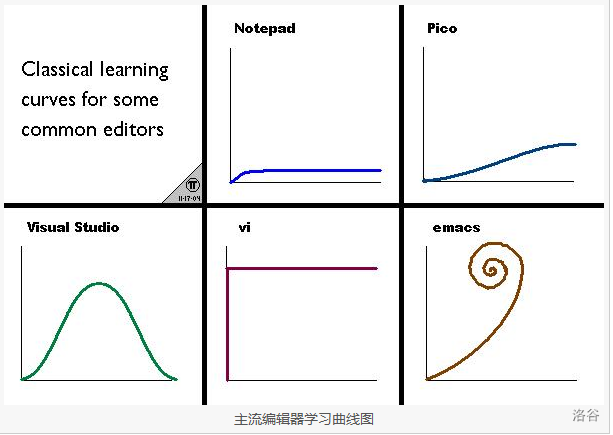
以上这两点虽然是 Emacs 的优点,同时却也增加了其学习难度。网上有一张有趣的图片:
安装
参照 GNU Emacs 官网。
这里给出 ubuntu 系统的 Emacs 安装命令:
1
| sudo apt-get install emacs
|
还有 windows 系统的 Emacs下载链接。如果下载太慢,可以用阿里云镜像下载。
注意,命令安装的 Emacs 通常版本比较旧(比如上面的命令目前会安装 Emacs29.3),如果你想要体验新版(Emacs30.1,Emacs30.2)可以手动编译安装。
本文环境为 ubuntu 下的 Emacs29.3。
启动 Emacs
Emacs 有图形界面版本和终端版本,在终端输入
即可打开图形界面版本。
即可打开终端版本。
这两条命令后面加文件名即可打开文件,若文件不存在则会自动创建。
认识 Emacs 界面
emacs 初次打开后应该长这样:
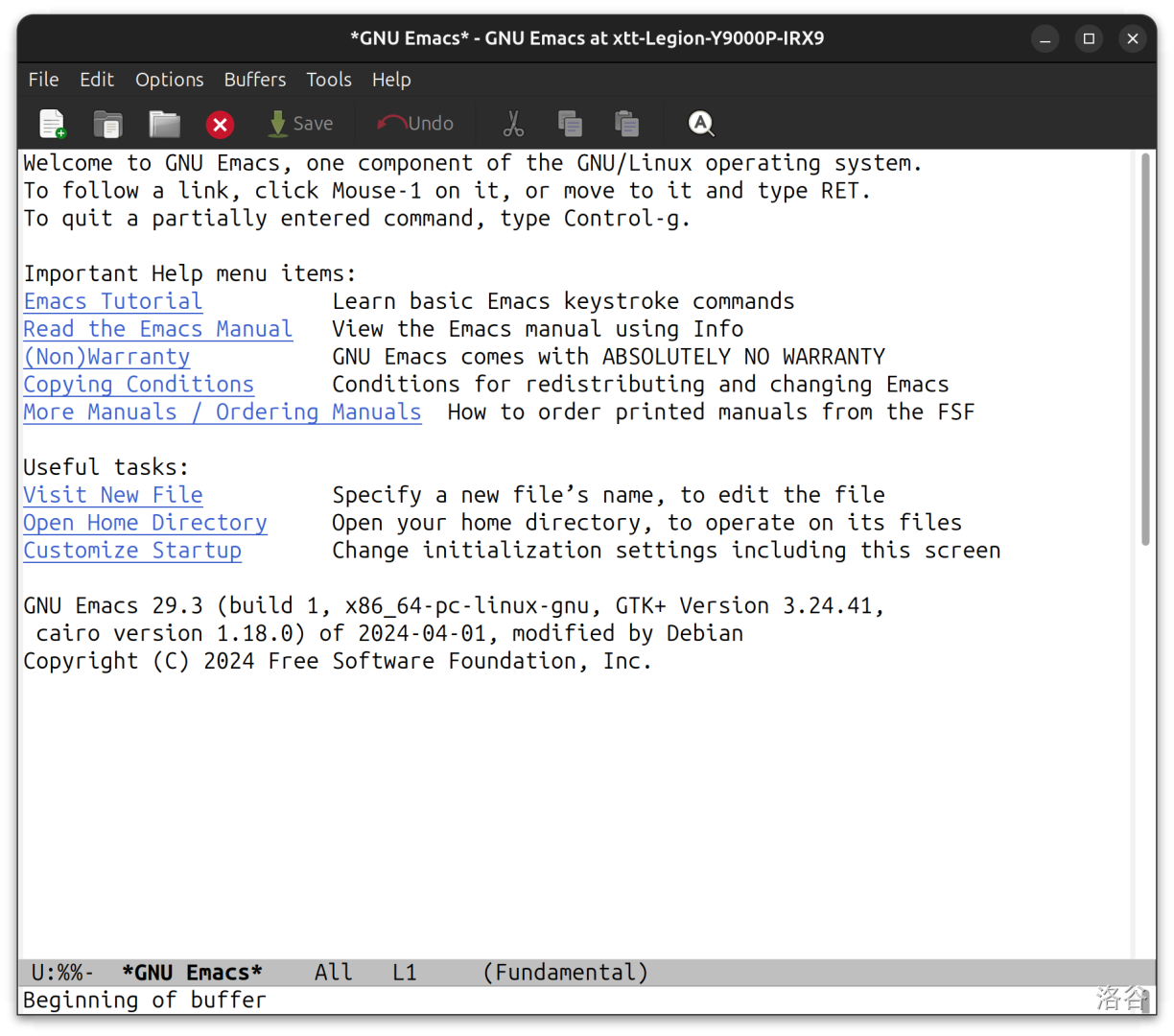
下面介绍一些基本概念。
- frame:打开的一整个窗口称作 frame。打开多个窗口就有多个 frame。上图就是一个 frame。
- menu bar:菜单栏,即窗口顶部“File Edit…”那一栏。
- tool bar:工具栏,即 menu bar 下面的栏目。
- buffer:缓冲即打开的文件和进程,在不保存的情况下,在缓冲中修改并不会修改到文件。在缓冲区的底部(modeline 上)点击缓冲的名字或者使用快捷键可以切换缓冲。上图打开了“GNU Emacs”这个 buffer。
- window:tool bar 以下,minibuffer 以上一整个区域称作一个 window,分屏可以有多个 window。
- modeline:位于窗口底部的模式线,用来显示当前 buffer 信息。
- minibuffer:modeline 下面就是 minibuffer。minibuffer 用来显示一些信息或提示。上图中 minibuffer 里显示着“Beggining of buffer”的字样。在 minibuffer 输入时可以向终端那样按
Tab 补全。
基本操作
基本快捷键
为方便叙述,以后用 C 代表 Ctrl 键;M 代表 Alt 键;C-? 或 M-? 表示同时按下 C 和 ? 或 M 和 ?;C-M-? 表示同时按下 C,M 和 ?;? ? 表示依次按下前后两个键。
打开一个目录:C-x d
打开一个文件(不存在会自动创建):C-x C-f
保存文件:C-x C-s
关闭 Emacs:C-c C-x
window 管理
横向分屏:C-x 3
纵向分屏:C-x 2
只保留光标所在分屏,删除其他 window:C-x 1
删除光标所在 window:C-x 0
切换到下一个 window:C-x o
另外,用鼠标可以调整 window 大小。
buffer 管理
切换 buffer:C-x b
上/下一个 buffer:C-x <left>/<right>
杀死 buffer:C-x k
命令
按下 M-x 可以输入命令,按下 C-g 可以放弃当前命令。很多命令可以用快捷键替代。
基本配置
启动 Emacs 时,Emacs 会自动依次寻找以下几个文件之一作为配置文件(一旦找到了其中之一,就不会继续按顺序寻找后面的其它文件了):
1
2
3
4
| ~/.emacs
~/.emacs.el
~/.emacs.d/init.el
~/.config/emacs/init.el
|
一般习惯把配置文件放在 ~/.emacs.d/init.el,配置越来越多之后可以分门别类地放在 ~/.emacs.d 的其他文件中,并在 init.el 中加载它们。
下面,在 init.el 中写入:
1
2
3
4
5
6
7
8
9
10
11
12
13
14
15
16
17
18
19
20
21
22
23
24
25
26
27
28
29
30
31
32
33
34
35
36
37
38
39
40
41
42
43
44
| (setq-default inhibit-startup-screen t) ;;不显示欢迎页面
(menu-bar-mode -1) ; 关闭 menubar
(tool-bar-mode -1) ; 关闭 toolbar
(when (display-graphic-p) (toggle-scroll-bar -1)) ; 图形界面时关闭滚动条
;; 只在编程模式下显示行号
(add-hook 'prog-mode-hook 'display-line-numbers-mode)
(defun turn-off-line-numbers () ; 在其他模式下关闭行号
"关闭行号显示"
(display-line-numbers-mode -1))
(dolist (mode '(text-mode-hook ; 为一些不需要行号的模式添加钩子
fundamental-mode-hook
messages-buffer-mode-hook
shell-mode-hook
term-mode-hook
eshell-mode-hook
dired-mode-hook
help-mode-hook
info-mode-hook))
(add-hook mode 'turn-off-line-numbers))
(global-auto-revert-mode t) ; 当另一程序修改了文件时,让 Emacs 及时刷新 Buffer
(setq make-backup-files nil) ; 关闭文件自动备份
(setq create-lockfiles nil) ; 不锁文件
(setq-default kill-ring-max 65535) ; 扩大可撤销记录
(delete-selection-mode t) ; 选中文本后输入文本会替换文本
(electric-pair-mode t) ; 自动补全括号
(add-hook 'prog-mode-hook #'hs-minor-mode) ; 编程模式下,可以折叠代码块
;; 设置缩进
(setq-default c-basic-offset 2) ; 个人习惯缩进两格,也可以调成 4
(setq-default indent-tabs-mode nil) ; 用空格缩进
(setq-default default-tab-width 2)
(setq-default tab-width 2)
;; 设置默认编码环境
(set-language-environment "UTF-8")
(set-default-coding-systems 'utf-8)
;; 设置透明度
(setq default-frame-alist '((alpha-background . 85)))
|
配置保存好后可以按 C-c C-e 加载,而更彻底的方法是直接重启 Emacs 生效。
字体
我用的是 Fira Code。
先安装(ubuntu):
1
| sudo apt install fonts-firacode
|
windows 可以从 Fira Code 的 github 官网 安装。
接下来在 init.el 中启用字体,并开启连字功能:
1
2
3
4
5
6
7
8
9
10
11
12
13
14
15
16
17
18
19
20
21
22
23
24
25
26
27
28
29
30
31
| (when (window-system)
(set-frame-font "Fira Code-16"))
(let ((alist '((33 . ".\\(?:\\(?:==\\|!!\\)\\|[!=]\\)")
(35 . ".\\(?:###\\|##\\|_(\\|[#(?[_{]\\)")
(36 . ".\\(?:>\\)")
(37 . ".\\(?:\\(?:%%\\)\\|%\\)")
(38 . ".\\(?:\\(?:&&\\)\\|&\\)")
(42 . ".\\(?:\\(?:\\*\\*/\\)\\|\\(?:\\*[*/]\\)\\|[*/>]\\)")
(43 . ".\\(?:\\(?:\\+\\+\\)\\|[+>]\\)")
(45 . ".\\(?:\\(?:-[>-]\\|<<\\|>>\\)\\|[<>}~-]\\)")
(46 . ".\\(?:\\(?:\\.[.<]\\)\\|[.=-]\\)")
(47 . ".\\(?:\\(?:\\*\\*\\|//\\|==\\)\\|[*/=>]\\)")
(48 . ".\\(?:x[a-zA-Z]\\)")
(58 . ".\\(?:::\\|[:=]\\)")
(59 . ".\\(?:;;\\|;\\)")
(60 . ".\\(?:\\(?:!--\\)\\|\\(?:~~\\|->\\|\\$>\\|\\*>\\|\\+>\\|--\\|<[<=-]\\|=[<=>]\\||>\\)\\|[*$+~/<=>|-]\\)")
(61 . ".\\(?:\\(?:/=\\|:=\\|<<\\|=[=>]\\|>>\\)\\|[<=>~]\\)")
(62 . ".\\(?:\\(?:=>\\|>[=>-]\\)\\|[=>-]\\)")
(63 . ".\\(?:\\(\\?\\?\\)\\|[:=?]\\)")
(91 . ".\\(?:]\\)")
(92 . ".\\(?:\\(?:\\\\\\\\\\)\\|\\\\\\)")
(94 . ".\\(?:=\\)")
(119 . ".\\(?:ww\\)")
(123 . ".\\(?:-\\)")
(124 . ".\\(?:\\(?:|[=|]\\)\\|[=>|]\\)")
(126 . ".\\(?:~>\\|~~\\|[>=@~-]\\)")
)
))
(dolist (char-regexp alist)
(set-char-table-range composition-function-table (car char-regexp)
`([,(cdr char-regexp) 0 font-shape-gstring]))))
|
如果你用其他字体可以参照这条:
1
| (set-face-attribute 'default nil :font "Ubuntu Mono-16")
|
其中 Ubuntu Mono换为你想要的字体,16 可以控制字体大小,按需调整。
在 init.el 结尾,要有一句
快捷键配置
为避免过于杂乱,我们把快捷键配置放在 ~/.emacs.d/init/key-bindings.el 文件中。
在 ~/.emacs.d/init/key-bindings.el 中写入:
1
2
3
4
5
6
7
8
9
10
11
12
13
14
15
16
17
18
19
20
21
22
23
24
25
26
27
28
29
30
31
32
33
34
35
36
37
38
39
40
41
42
43
44
45
46
47
48
49
50
51
52
53
54
55
56
57
58
59
60
61
62
63
64
65
66
67
68
69
70
71
72
73
74
75
76
77
78
79
80
81
82
83
84
85
86
87
88
89
90
91
92
93
94
95
96
97
98
99
100
101
102
103
104
105
106
107
108
109
110
111
112
113
114
115
116
117
118
119
120
121
122
123
124
125
126
127
128
129
130
131
132
133
134
135
136
137
138
139
140
141
142
143
144
145
146
147
148
149
150
151
152
153
154
| (cua-mode t) ; C-c/v/x 复制/粘贴/剪切
(global-set-key (kbd "C-a") 'mark-whole-buffer) ; 全选快捷键
(global-set-key (kbd "C-z") 'undo) ; 撤销快捷键
(global-set-key (kbd "C-s") 'save-buffer) ; 保存快捷键
(defun insert-line-below-simple ()
(interactive)
(end-of-line)
(newline-and-indent))
(defun insert-line-above-simple ()
(interactive)
(beginning-of-line)
(newline-and-indent)
(forward-line -1)
(indent-according-to-mode))
;; 在 cua-mode 加载后覆盖绑定
(with-eval-after-load 'cua-base
;; 移除 cua-mode 原有的绑定
(define-key cua-global-keymap (kbd "C-<return>") nil)
(define-key cua-global-keymap (kbd "C-S-<return>") nil)
(global-set-key (kbd "C-<return>") 'insert-line-below-simple)
(global-set-key (kbd "C-S-<return>") 'insert-line-above-simple))
(defun tab-or-insert-spaces ()
"在行首缩进,在行中插入空格。"
(interactive)
(if (bolp) ;; 判断光标是否在行首 (Beginning Of Line)
(indent-for-tab-command) ;; 在行首,执行缩进
(insert " "))) ;; 不在行首,插入两个空格(你也可以按习惯调成 4 个空格)
(global-set-key (kbd "TAB") 'tab-or-insert-spaces)
;; 更人性化的 Ctrl + Backspace/Delete
(defun smart-backward-kill ()
(interactive)
(let ((pos (point)))
(skip-chars-backward " \t\n\r\f")
(if (= (point) pos)
(let ((start (point)))
(cond
((looking-back "[[:punct:]]+" nil)
(while (and (> (point) (point-min))
(looking-back "[[:punct:]]" nil))
(backward-char)))
(t
(backward-word 1)))
(delete-region (point) start))
(delete-region (point) pos))))
(defun smart-forward-kill ()
(interactive)
(let ((pos (point)))
(skip-chars-forward " \t\n\r\f")
(if (= (point) pos)
(let ((end (point)))
(cond
((looking-at "[[:punct:]]+")
(while (and (< (point) (point-max))
(looking-at "[[:punct:]]"))
(forward-char)))
(t
(forward-word 1)))
(delete-region end (point)))
(delete-region pos (point)))))
(global-set-key (kbd "C-<backspace>") 'smart-backward-kill)
(global-set-key (kbd "C-<delete>") 'smart-forward-kill)
;; 更人性化的 Ctrl + <- / ->
(defun smart-backward-move ()
(interactive)
(let ((pos (point)))
(skip-chars-backward " \t\n\r\f")
(if (= (point) pos)
(let ((start (point)))
(cond
((looking-back "[[:punct:]]+" nil)
(while (and (> (point) (point-min))
(looking-back "[[:punct:]]" nil))
(backward-char)))
(t
(backward-word 1)))
)
)))
(defun smart-forward-move ()
(interactive)
(let ((pos (point)))
(skip-chars-forward " \t\n\r\f")
(if (= (point) pos)
(let ((end (point)))
(cond
((looking-at "[[:punct:]]+")
(while (and (< (point) (point-max))
(looking-at "[[:punct:]]"))
(forward-char)))
(t
(forward-word 1)))
)
)))
(global-set-key (kbd "C-<left>") 'smart-backward-move)
(global-set-key (kbd "C-<right>") 'smart-forward-move)
;; 更人性化的 Ctrl + Shift + <- / ->
(defun smart-backward-extend ()
(interactive)
(let ((pos (point)))
(skip-chars-backward " \t\n\r\f")
(if (= (point) pos)
(let ((start (point)))
(cond
((looking-back "[[:punct:]]+" nil)
(while (and (> (point) (point-min))
(looking-back "[[:punct:]]" nil))
(backward-char)))
(t
(backward-word 1)))
;; 处理选择
(if (use-region-p)
(setq deactivate-mark nil) ; 保持区域激活
(push-mark start t t)))
;; 跳过了空白字符
(if (use-region-p)
(setq deactivate-mark nil)
(push-mark pos t t)))))
(defun smart-forward-extend ()
(interactive)
(let ((pos (point)))
(skip-chars-forward " \t\n\r\f")
(if (= (point) pos)
(let ((end (point)))
(cond
((looking-at "[[:punct:]]+")
(while (and (< (point) (point-max))
(looking-at "[[:punct:]]"))
(forward-char)))
(t
(forward-word 1)))
;; 处理选择
(if (use-region-p)
(setq deactivate-mark nil)
(push-mark end t t)))
(if (use-region-p)
(setq deactivate-mark nil)
(push-mark pos t t)))))
(global-set-key (kbd "C-S-<left>") 'smart-backward-extend)
(global-set-key (kbd "C-S-<right>") 'smart-forward-extend)
(global-set-key (kbd "C-S-k") 'kill-whole-line)
(global-set-key (kbd "M-f") 'isearch-forward)
(global-set-key (kbd "M-b") 'isearch-backward)
(provide 'key-bindings)
|
你也可以仿照上面的格式,根据自己的需求自定义快捷键。
一键编译运行
Emacs 自带了 compile 命令,但是这条命令不能运行程序。对于运行,蒟蒻强烈推荐在 async-shell 中进行。
我们可以设计一个函数来一键编译运行,并绑定到 f5 上。
直接写进配置(在 (provide 'key-bindings) 之前):
1
2
3
4
5
6
7
8
9
10
11
12
13
14
15
16
17
18
19
20
21
22
23
24
25
26
27
28
29
30
31
32
33
34
35
36
37
38
39
40
41
42
43
44
45
46
47
48
49
50
51
52
53
54
55
56
57
58
| (defun compile-and-run-in-term ()
"一键编译运行C++,自动聚焦到输出窗口"
(interactive)
(let* ((file (buffer-file-name))
(dir (file-name-directory file))
(base-name (file-name-base file))
;; 根据平台选择可执行文件名
(exe-name (if (eq system-type 'windows-nt)
(concat base-name ".exe")
base-name))
;; 根据平台选择路径分隔符
(path-sep (if (eq system-type 'windows-nt) "\\" "/"))
;; 临时文件路径
(temp-cpp (format "%s%s%s_temp.cpp" dir path-sep base-name))
;; 缓冲区名称
(buf-name (format "*%s*" base-name)))
;; 将当前缓冲区内容写入临时文件(不保存原文件)
(write-region (point-min) (point-max) temp-cpp nil 'quiet)
(let ((cmd
(cond
;; Windows
((eq system-type 'windows-nt)
(format "cd /d %s && g++ -std=c++14 -O2 -Wall -o %s %s_temp.cpp && %s && del %s_temp.cpp && del %s"
dir
exe-name
base-name
exe-name
base-name
exe-name))
;; Unix/Linux/macOS
(t
(format "cd %s && (g++ -std=c++14 -O2 -Wall -o %s %s_temp.cpp && ./%s) ; rm -f %s_temp.cpp %s"
dir
exe-name
base-name
exe-name
base-name
exe-name)))))
;; 如果有旧的运行缓冲区,先删除
(when (get-buffer buf-name)
(kill-buffer buf-name))
;; 异步执行命令
(async-shell-command cmd buf-name)
;; 等待一下确保缓冲区已创建
(sit-for 0.1)
;; 切换到输出缓冲区
(when (get-buffer buf-name)
(switch-to-buffer-other-window buf-name)
(end-of-buffer)))))
(eval-after-load 'cc-mode
'(define-key c++-mode-map (kbd "<f5>") 'compile-and-run-in-term))
|
保存好后,在 init.el 中加入:
1
2
3
|
(add-to-list 'load-path "~/.emacs.d/init/")
(require 'key-bindings)
|
这样打开 Emacs 时就会加载这些配置了。
插件配置
我们新建文件 ~/.emacs.d/init/pack.el,后面的插件配置就写在这里。不要忘记在文件最后写上一句 (provide 'pack),并且在 init.el 中写上 (require 'pack)(如果你之前没有在 init.el 里写 (add-to-list 'load-path "~/.emacs.d/init/"),请把这句话补充在 require 之前)。
插件从哪里下载呢?Emacs 最大的插件仓库就是 MELPA 了。配置如下:
1
2
3
4
5
| (require 'package)
(setq package-archives '(("gnu" . "http://mirrors.cloud.tencent.com/elpa/gnu/")
("melpa" . "http://mirrors.cloud.tencent.com/elpa/melpa/")))
(package-initialize)
|
这里用的是腾讯镜像用来加快速度,也可以用清华镜像:
1
2
| (setq package-archives '(("gnu" . "https://mirrors.tuna.tsinghua.edu.cn/elpa/gnu/")
("melpa" . "https://mirrors.tuna.tsinghua.edu.cn/elpa/melpa/")))
|
接下来管理插件可以用 use-package 方便地实现,注意 use-package 从 Emacs29.1 开始集成到 Emacs 中,Emacs28 及以下版本需安装:
1
2
| (eval-when-compile
(require 'use-package))
|
下面介绍第一组插件:vertico 和 orderless
vertico & orderless
vertico 官网
orderless官网
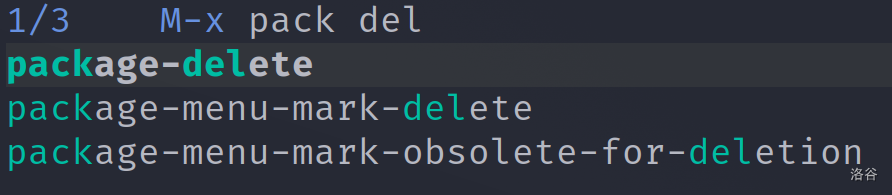
vertico 可以增强 minibuffer 的补全功能,并显示补全菜单。orderless 支持了模糊补全。这两个插件一起配合可以大大增强 Emacs 使用体验。
配置
1
2
3
4
5
6
7
| (use-package vertico
:ensure t
:init (vertico-mode t))
(use-package orderless
:ensure t
:init (setq completion-styles '(orderless)))
|
效果

consult
consult 官网
consult 插件提供了强大的搜索功能,以及非常友好的交互。
配置
1
2
3
4
5
6
7
8
9
| (use-package consult
:ensure t
:config
(setq consult-fd-args "fd -H -u") ; 不忽视隐藏文件(Windows 用户请删除这一行)
:bind
("C-x b" . consult-buffer)
("C-f" . consult-line)
("C-c f" . consult-fd) ; windows 用不了,删掉这行
("C-c r" . consult-ripgrep))
|
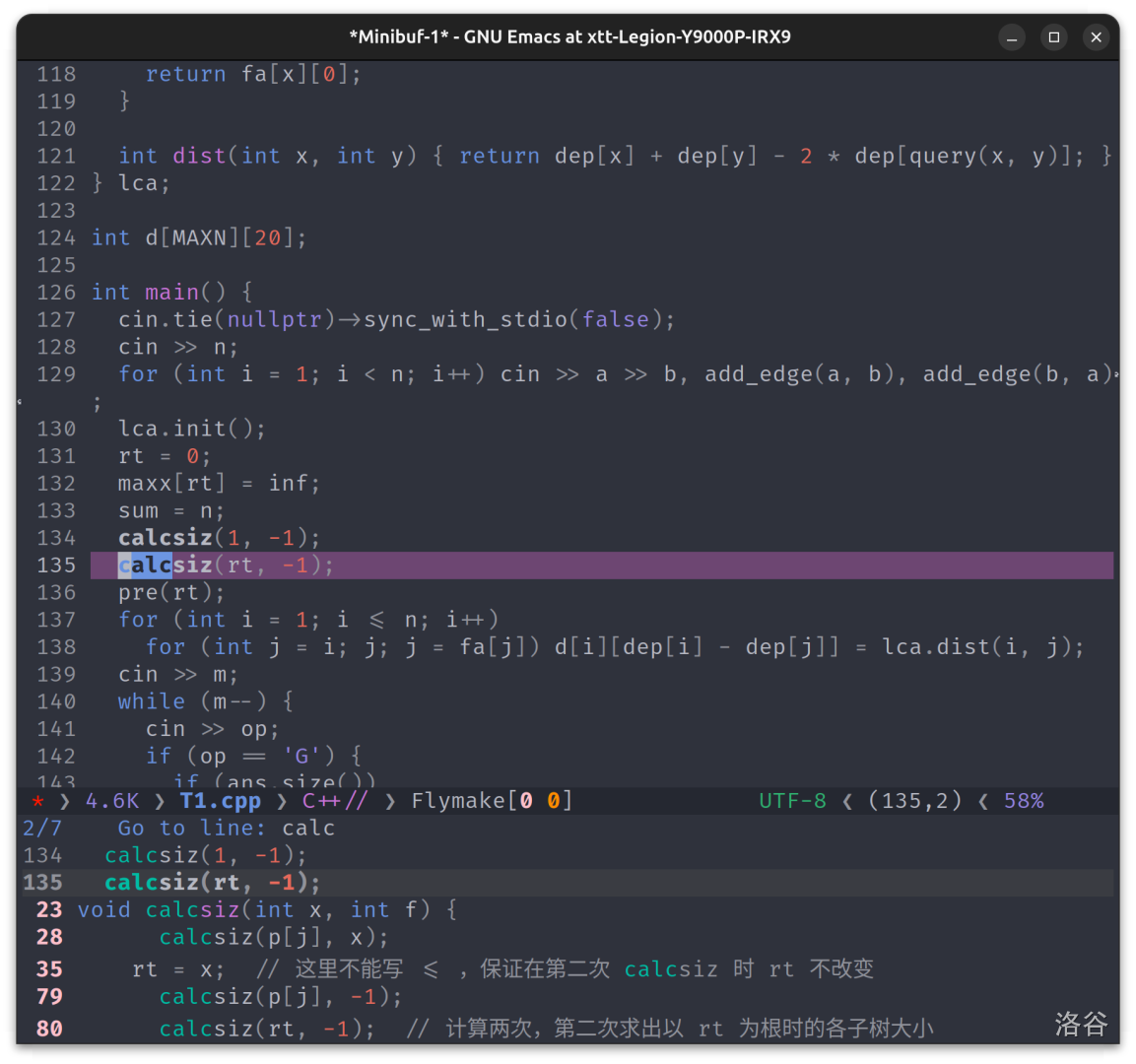
此时按 C-f 就可以在 buffer 内搜索:
接着,我们想要用 C-c f 来根据文件名搜索文件,C-c r 根据文件内容搜索文件。它们分别有两种选择:
根据名称搜索:
consult-findconsult-fd(windows 用不了)
根据内容搜索:
consult-grepconsult-ripgrep
编号为 1 的两个工具可以直接使用,而编号为 2 的两个工具需要手动安装,不过后者速度几乎碾压前者,因此我们选择后者。
安装 rg
我们前往 ripgrep 官网,在 release 中找到你需要的压缩包下载,然后把解压出来的 rg 文件放在以下目录:
- linux:
/usr/local/bin/
- windows:
C:\Windows\System32\
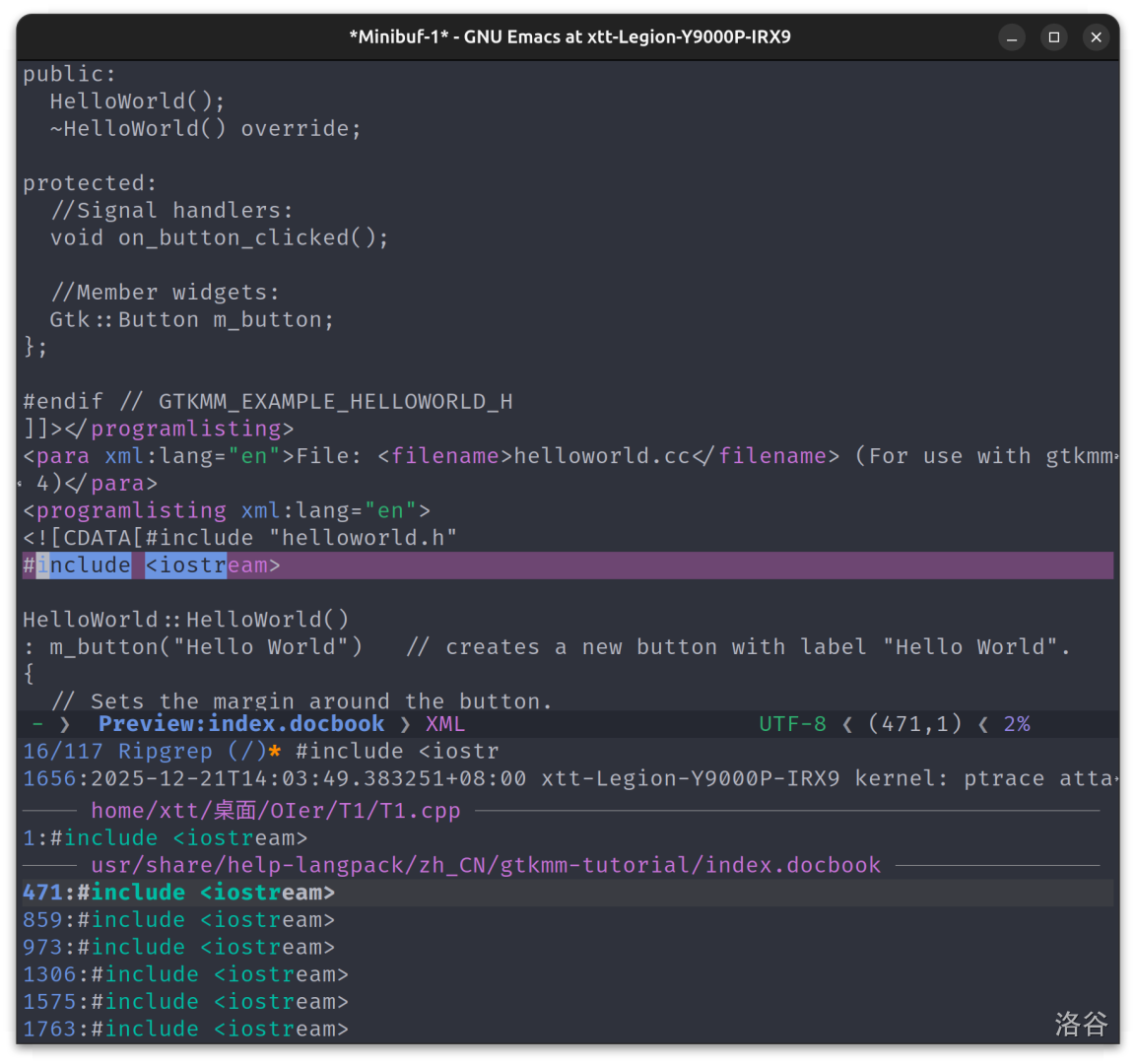
回到 Emacs,consult-ripgrep 即可正常使用。效果如下
安装 fd(windows 用不了)
如果你是 windows 用户,可以考虑用另一个强大的工具 everything 代替。
如果你是 linux 用户,就访问 fd 官网,在 release 中找到你需要的压缩包下载,然后把解压出来的 fd 文件放在 /usr/local/bin/ 目录下。接着回到 Emacs 就可以正常使用了。
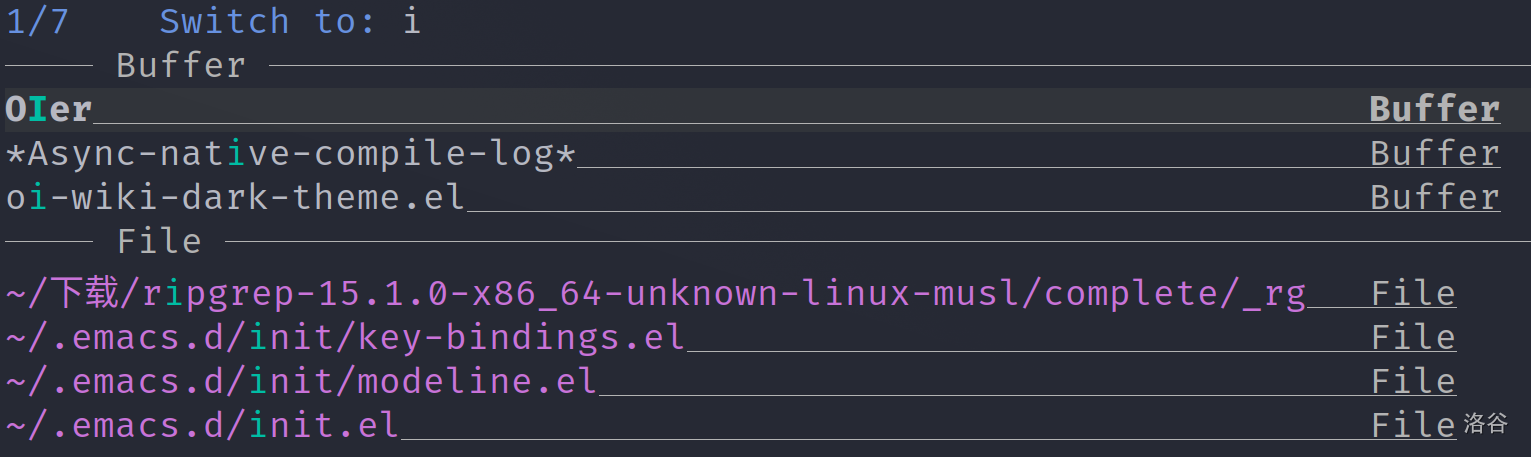
此外,插件中的 consult-buffer 还提供了很好用的虚拟 buffer 功能,即可以切换到最近打开而当前未打开的 buffer,如图:
company
company 官网
这个插件的名字可不是“公司”,而是“complete any”的缩写,意为“补全一切”,顾名思义可以提供代码补全。
配置:
1
2
3
4
5
6
7
8
9
| (use-package company
:ensure t
:init
(setq company-global-modes '(not shell-mode eshell-mode term-mode))
(global-company-mode 1)
:config
(setq company-minimum-prefix-length 1) ; 只需敲 1 个字母就开始进行自动补全
:bind (:map company-active-map
("<tab>" . company-complete-selection))) ; 按 tab 补全
|
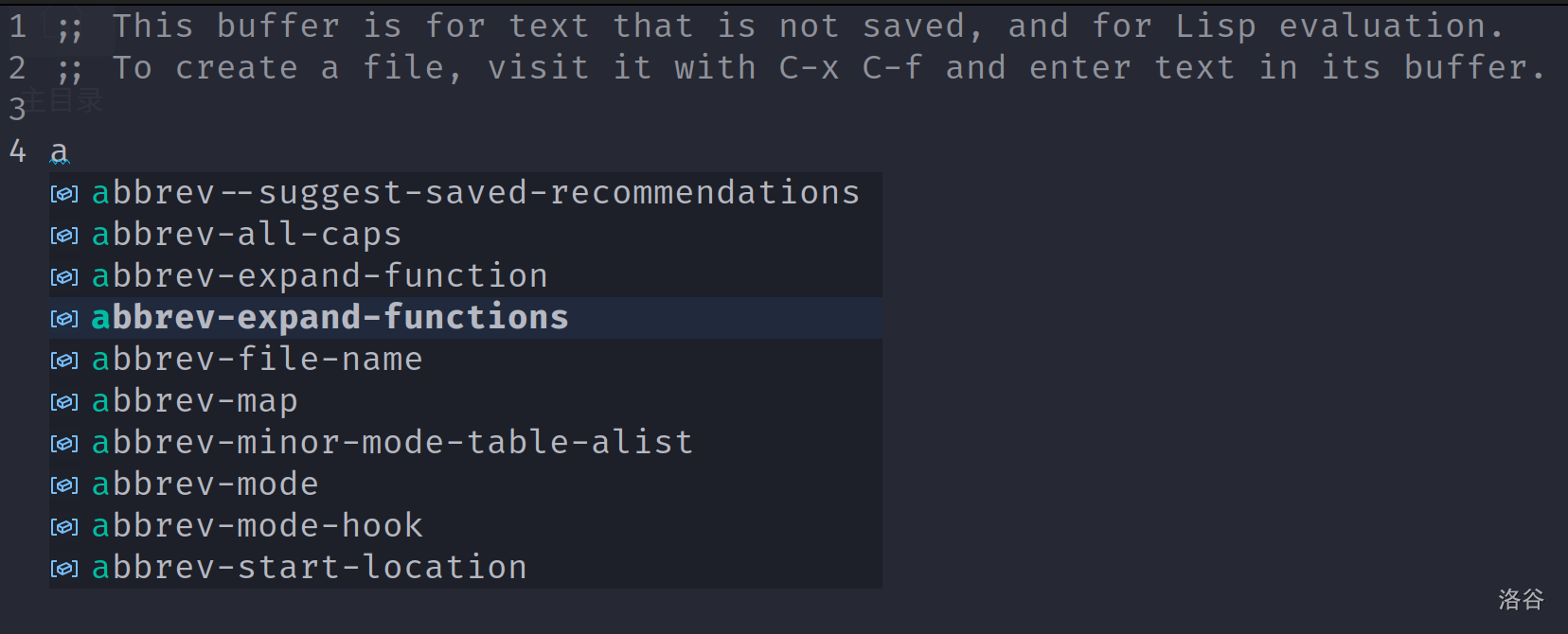
然后在 .el 文件中,敲一个字母就会发现有补全功能了。
但是想要补全 cpp 文件,还需要下一个插件。
eglot
为实现代码分析功能,我们可以用微软为 VSCode 设计的 LSP(Language Server Protocol)。Emacs 中提供 LSP 的插件有 lsp 和 eglot。前者功能更多,后者更加轻量,且集成于 Emacs29 中,这里选择后者。
1
2
3
4
5
6
7
8
9
10
11
| (use-package eglot
:ensure t
:hook ((c++-mode . eglot-ensure))
:config
(add-to-list 'eglot-ignored-server-capabilities :inlayHintProvider)
(add-to-list 'eglot-server-programs '((c++-mode)
"clangd"
"--header-insertion=never" ; 不自动补全头文件,OIer 狂喜
"--clang-tidy"
"--function-arg-placeholders=0"))
(setq eglot-autoreconnect nil))
|
但是,光有 LSP 是不够的,我们还需要下载 LSP 的服务器,对于 C++ 来说可以下载 clangd。另外,gcc 等工具对于 OIer 来说也是必不可少的。
Ubuntu:
1
2
| sudo apt-get update
sudo apt-get install build-essential gdb clangd
|
Windows:先安装 msys2
然后在 msys2 中运行
1
2
| pacman -Syu
pacman -S mingw-w64-x86_64-gcc mingw-w64-x86_64-gdb mingw-w64-x86_64-clang mingw-w64-x86_64-clang-tools-extra
|
最后,如果是 linux 系统,还需要在根目录(确保你的项目都在“根目录”即可)下创建一个 .clangd 文件,写入
1
2
3
4
5
| CompileFlags:
Add:
- "-isystem/usr/include/c++/13"
- "-isystem/usr/include/x86_64-linux-gnu/c++/13"
Compiler: g++
|
如果是 windows 系统,就打开应用“编辑系统环境变量”,然后打开“环境变量”->“Path”->“编辑”->“新建”,写入
再次“新建”,写入
注意,如果你的安装目录不是默认的 C:\msys64\,就把 C:\msys64\ 换成你的安装目录。
接着依次点击三个“确定”按钮,就生效了。
然后在 cpp 文件中就会发现有补全了。
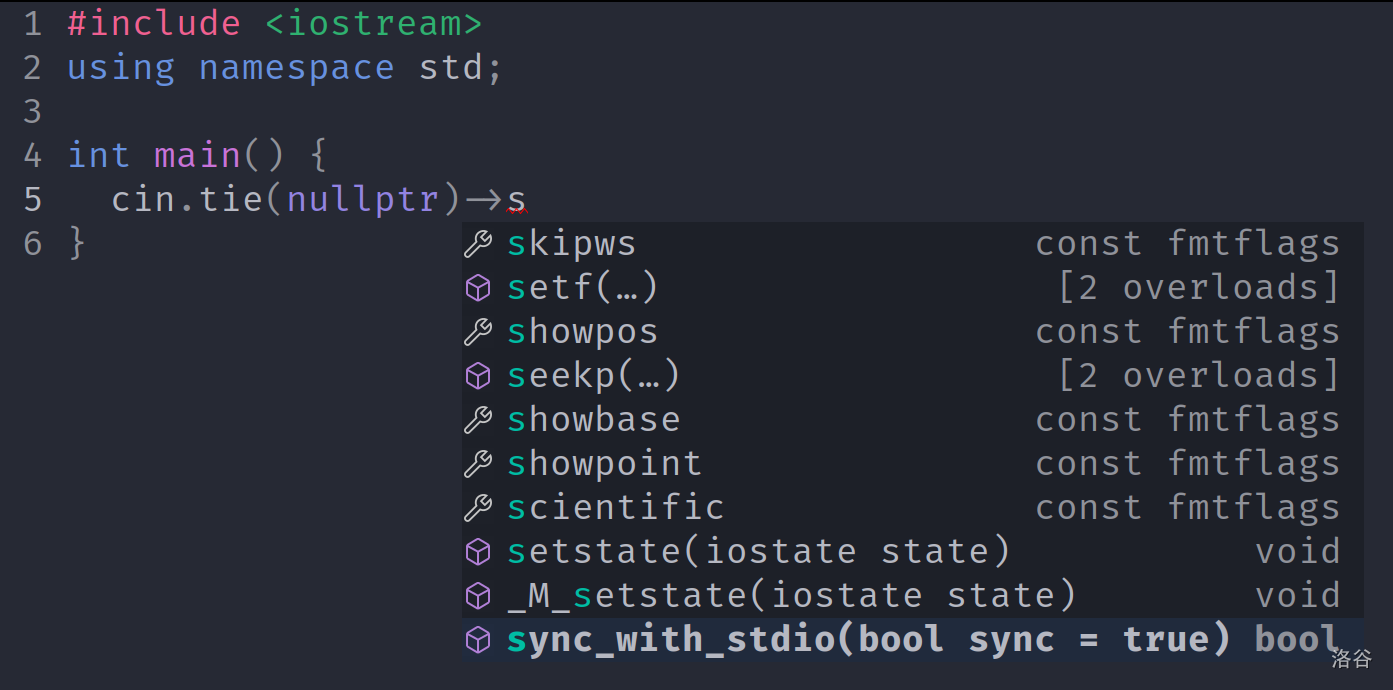
但是函数补全时不会补全括号,加入以下配置可以让补全更人性化。
1
2
3
4
5
6
7
8
9
10
11
12
13
14
15
16
17
18
19
20
21
22
23
24
25
26
27
28
29
30
31
32
33
34
35
36
37
38
39
40
41
42
43
44
45
46
47
48
49
50
51
52
53
54
| ;; 使 LSP 补全支持 snippet,从而在函数补全时插入括号
(use-package yasnippet
:ensure t
:init (yas-global-mode 1))
;; 让 company 优先使用 capf(eglot)提供的补全,获得函数调用片段
(with-eval-after-load 'company
(setq company-backends '(company-capf)))
;; 更智能的括号插入:
;; - 若候选为函数:自动插入 ()
;; - 有参:光标置于括号内
;; - 无参:光标留在括号外
(defvar-local xtt/company--last-candidate nil)
(defvar-local xtt/company--last-backend nil)
(defun xtt/company--capture-candidate (&rest _)
(setq xtt/company--last-backend company-backend
xtt/company--last-candidate (and (boundp 'company-candidates)
(nth company-selection company-candidates))))
(defun xtt/company--function-like-p (cand)
(let* ((kind (ignore-errors (company-call-backend 'kind cand)))
(ann (ignore-errors (company-call-backend 'annotation cand)))
(kind-func (or (memq kind '(function method constructor))
(and (integerp kind) (memq kind '(2 3 6)))))
(ann-has-parens (and (stringp ann) (string-match-p "(.*)" ann))))
(or kind-func ann-has-parens)))
(defun xtt/company--no-arg-p (cand)
(let ((ann (ignore-errors (company-call-backend 'annotation cand))))
(when (stringp ann)
(if (string-match "(\([^)]*\))" ann)
(let* ((inner (match-string 1 ann))
(trimmed (string-trim (or inner ""))))
(or (string-empty-p trimmed)
(string-equal trimmed "void")))
nil))))
(defun xtt/company--post-complete-insert-parens (&rest _)
(let ((cand xtt/company--last-candidate)
(backend xtt/company--last-backend))
(setq xtt/company--last-candidate nil
xtt/company--last-backend nil)
(when (and cand
(eq backend 'company-capf)
(xtt/company--function-like-p cand))
(let ((no-arg (xtt/company--no-arg-p cand)))
(insert "()")
(unless no-arg (backward-char 1))))))
(with-eval-after-load 'company
(advice-add 'company-complete-selection :before #'xtt/company--capture-candidate)
(advice-add 'company-complete-selection :after #'xtt/company--post-complete-insert-parens))
|
这样补全就更智能了。
flymake
主流的语法检查工具还有 flycheck,因为 eglot 用的是 flymake 所以这里也用 flymake。
配置:
1
2
3
| (use-package flymake
:ensure t
:hook (prog-mode . flymake-mode))
|
dashboard
dashboard 官网
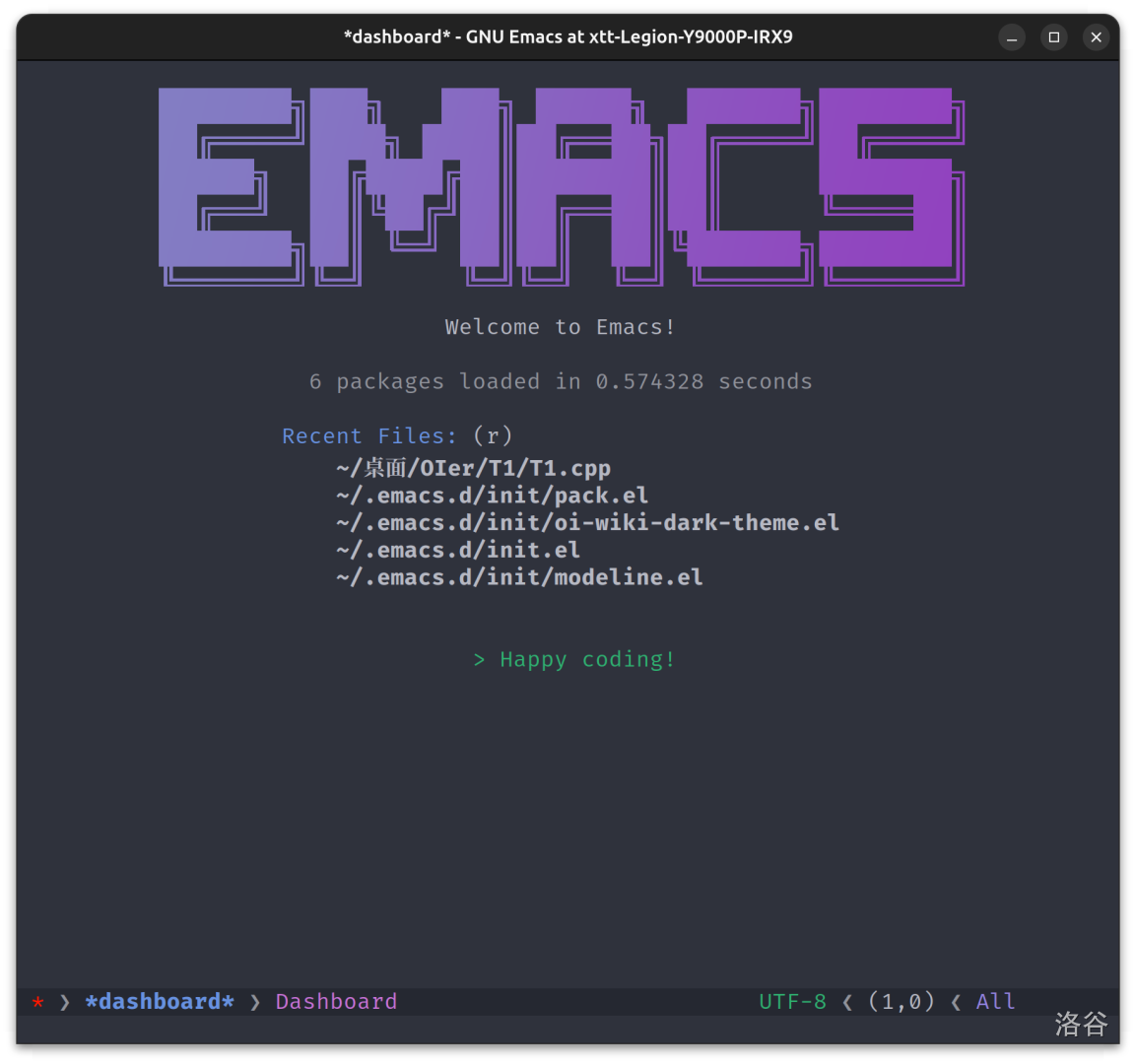
这个插件可以提供一个比较好看的启动界面。
配置
1
2
3
4
5
6
7
8
9
10
11
| (use-package dashboard
:ensure t
:config
(dashboard-setup-startup-hook)
(setq dashboard-navigation-cycle t)
(setq dashboard-center-content t)
(setq dashboard-image-banner-max-width 1300) ; 限制图片最大宽度,单位像素
(setq dashboard-image-banner-max-height 800) ; 限制图片最大高度,单位像素
(setq dashboard-startup-banner "/home/xtt/.emacs.d/elpa/dashboard-20210928.656/banners/EMACS.png") ; 这里可以换成你的图片
(setq dashboard-items '((recents . 6)))
)
|
其中 (setq dashboard-startup-banner ...) ... 处可以填写图片路径、txt 文件路径或者 'logo。它们分别会显示图片、文本、Emacs 的 logo。
重新启动 Emacs 可能会报错找不到“linum-mode”。我们可以在上述配置前加入
1
| (defun linum-mode (&optional arg))
|
这样定义了一个空的函数,就不会报错了。
效果
主题
Emacs 默认的界面陈旧丑陋,不加载主题实在没法看。
目前网上有很多优秀主题,你可以直接下载,此处以 Dracula Theme 为例,在 Emacs 中执行 M-x package-install RET dracula-theme 即可安装,在 init.el 中写入 (load-theme 'dracula t) 即可启用。
这里再给出一个浏览 Emacs 主题的网站。
蒟蒻用的是自己写的主题。如果你也想用,就新建文件 ~/.emacs.d/init/oi-wiki-dark-theme.el,写入
1
2
3
4
5
6
7
8
9
10
11
12
13
14
15
16
17
18
19
20
21
22
23
24
25
26
27
28
29
30
31
32
33
34
35
36
37
38
39
40
41
42
43
44
45
46
47
48
49
50
51
52
53
54
55
56
57
58
59
60
61
62
63
64
65
66
67
68
69
70
71
72
73
74
75
76
77
78
79
80
81
82
83
84
85
86
87
88
89
90
91
92
93
94
95
96
97
98
99
100
101
102
103
104
105
106
107
108
109
110
111
112
113
114
115
116
117
118
119
120
121
122
123
124
125
126
127
128
129
130
131
132
133
134
135
136
137
138
139
140
141
142
143
144
145
146
147
148
149
150
151
152
153
154
155
156
157
158
159
160
161
162
163
164
165
166
167
168
169
170
171
172
173
174
175
176
177
178
179
180
| ;;; oi-wiki-dark-theme.el --- OI Wiki Dark C++ Theme -*- lexical-binding: t; -*-
(deftheme oi-wiki-dark "AKIOI")
(let* ((class '((class color) (min-colors 89)))
;; Base palette
(bg "#272a35")
(fg "#b6b8c2")
(red "#e6695b")
(prep "#f06090")
(green "#2fb170")
(blue "#6791e0")
(purple "#c973d9")
(grey "#90929a")
(lavender "#9383e2")
(cursor "#b6b8c2")
(divider "#3d404a"))
(custom-theme-set-faces 'oi-wiki-dark
;; Basics
`(default ((,class (:background ,bg :foreground ,fg))))
`(cursor ((,class (:background ,cursor))))
`(line-number ((,class (:foreground ,grey))))
`(line-number-current-line ((,class (:foreground ,fg))))
`(show-paren-match ((,class (:foreground unspecified :weight bold))))
`(region ((,class (:foreground unspecified :background "#68406d"))))
`(fringe ((,class (:background nil))))
`(window-divider ((,class (:foreground ,divider))))
`(minibuffer-prompt ((,class (:foreground ,blue))))
`(link ((,class (:foreground "#526cfe" :underline t))))
`(error ((,class (:foreground "#ff1700" :weight bold))))
`(company-tooltip ((,class (:foreground ,fg :background "#1e2129"))))
`(company-tooltip-annotation ((,class (:foreground ,grey))))
`(company-tooltip-common ((,class (:foreground "#00bda4"))))
`(company-tooltip-selection ((,class (:foreground ,fg :background "#212b3e" :weight bold))))
`(company-tooltip-common-selection ((,class (:foreground "#00bda4" :background "#212b3e" :weight bold))))
`(company-scrollbar-bg ((,class (:foreground nil :background nil))))
`(company-scrollbar-fg ((,class (:foreground nil :background nil))))
`(company-preview ((,class (:foreground ,grey))))
`(company-preview-common ((,class (:foreground ,grey :weight normal))))
`(mode-line ((t (:foreground ,fg :background "#1e2129" :box nil))))
`(mode-line-inactive ((t (:foreground ,grey :background "#2e303e" :box nil))))
`(xtt-modeline-buffer-state-modified ((,class (:foreground "#ff1700"))))
`(xtt-modeline-buffer-state-saved ((,class (:foreground ,green))))
`(xtt-modeline-file-size ((,class (:foreground ,lavender))))
`(xtt-modeline-buffer-name ((,class (:foreground ,blue :weight bold))))
`(xtt-modeline-major-mode ((,class (:foreground ,purple))))
`(xtt-modeline-separator ((,class (:foreground ,grey))))
`(xtt-modeline-coding-info ((,class (:foreground ,green))))
`(xtt-modeline-position ((,class (:foreground ,fg))))
`(xtt-modeline-percentage ((,class (:foreground ,lavender))))
;; Syntax faces (font-lock)
`(font-lock-keyword-face ((,class (:foreground ,blue))))
`(font-lock-type-face ((,class (:foreground ,blue))))
`(font-lock-string-face ((,class (:foreground ,green))))
`(font-lock-variable-name-face ((,class (:foreground ,fg))))
`(font-lock-function-name-face ((,class (:foreground ,purple))))
`(font-lock-function-call-face ((,class (:foreground ,fg))))
`(font-lock-comment-face ((,class (:foreground ,grey))))
`(font-lock-preprocessor-face ((,class (:foreground ,prep))))
`(font-lock-constant-face ((,class (:foreground ,lavender))))
`(font-lock-escape-face ((,class (:foreground ,red))))
`(font-lock-number-face ((,class (:foreground ,red))))
`(font-lock-delimiter-face ((,class (:foreground ,grey))))
`(font-lock-punctuation-face ((,class (:foreground ,grey))))
`(font-lock-operator-face ((,class (:foreground ,grey))))
`(font-lock-bracket-face ((,class (:foreground ,grey))))
`(font-lock-builtin-face ((,class (:foreground ,blue))))
`(consult-highlight-match ((,class (:foreground "#00bda4"))))
`(vertico-current ((,class (:background "#32353c" :weight bold))))
`(orderless-match-face-0 ((,class (:foreground "#00bda4"))))
`(orderless-match-face-1 ((,class (:foreground "#00bda4"))))
`(orderless-match-face-2 ((,class (:foreground "#00bda4"))))
`(orderless-match-face-3 ((,class (:foreground "#00bda4"))))
`(completions-common-part ((,class (:foreground "#00bda4"))))
`(isearch ((,class (:foreground ,bg :background ,blue))))
)
(custom-theme-set-variables
'oi-wiki-dark
`(window-divider-default-places 'right-only)
`(window-divider-default-right-width 2)
))
(window-divider-mode 1)
(define-minor-mode oi-wiki-cpp-numbers-mode
"在C++模式下高亮数字"
:lighter ""
(if oi-wiki-cpp-numbers-mode
(progn
(font-lock-add-keywords
nil
'(("\\<[-+]?\\(?:[0-9]*\\.\\)?[0-9]+\\(?:[eE][-+]?[0-9]+\\)?[fFlL]?\\b"
(0 (unless (or (nth 4 (syntax-ppss))
(nth 3 (syntax-ppss)))
'font-lock-number-face)))
("\\<[-+]?[0-9]+\\(?:[uUlL]+\\)?\\b"
(0 (unless (or (nth 4 (syntax-ppss))
(nth 3 (syntax-ppss)))
'font-lock-number-face)))
("\\<[-+]?0[xX][0-9a-fA-F]+[uUlL]*\\b"
(0 (unless (or (nth 4 (syntax-ppss))
(nth 3 (syntax-ppss)))
'font-lock-number-face)))
("\\<[-+]?0[bB][01]+[uUlL]*\\b"
(0 (unless (or (nth 4 (syntax-ppss))
(nth 3 (syntax-ppss)))
'font-lock-number-face)))
("\\<[-+]?0[0-7]+[uUlL]*\\b"
(0 (unless (or (nth 4 (syntax-ppss))
(nth 3 (syntax-ppss)))
'font-lock-number-face)))))
(font-lock-flush))
(font-lock-remove-keywords
nil
'((nil (0 nil))))
(font-lock-flush)))
(define-minor-mode oi-wiki-cpp-symbols-mode
"在C++模式下高亮符号为灰色"
:lighter ""
(if oi-wiki-cpp-symbols-mode
(progn
(font-lock-remove-keywords nil '((nil (0 nil))))
(font-lock-add-keywords
nil
'(("[][{}()]"
(0 (unless (or (nth 4 (syntax-ppss))
(nth 3 (syntax-ppss)))
'font-lock-bracket-face)))))
(font-lock-add-keywords
nil
'(
("[,;:]"
(0 (unless (or (nth 4 (syntax-ppss))
(nth 3 (syntax-ppss)))
'font-lock-punctuation-face)))
("[+*/%=&|^!~<>?.?-]"
(0 (unless (or (nth 4 (syntax-ppss))
(nth 3 (syntax-ppss)))
'font-lock-operator-face)))
("\\(?:->\\|\\+\\+\\|--\\|<<\\|>>\\|&&\\|||\\|::\\|\\+=\\|-=\\|\\*=\\|/=\\|%=\\|&=\\||=\\|^=\\|<<=\\|>>=\\|<=\\|>=\\|==\\|!=\\|->\\*\\|\\.\\*\\)"
(0 (unless (or (nth 4 (syntax-ppss))
(nth 3 (syntax-ppss)))
'font-lock-operator-face)))))
(font-lock-flush))
(font-lock-remove-keywords
nil
'((nil (0 nil))))
(font-lock-flush)))
(defun oi-wiki-dark-cpp-hook ()
"在C++模式下启用数字和符号高亮"
(oi-wiki-cpp-symbols-mode 1)
(oi-wiki-cpp-numbers-mode 1)
(when (buffer-file-name)
(font-lock-flush)))
(add-hook 'c++-mode-hook 'oi-wiki-dark-cpp-hook)
(dolist (buffer (buffer-list))
(with-current-buffer buffer
(when (derived-mode-p 'c++-mode)
(oi-wiki-cpp-numbers-mode 1)
(oi-wiki-cpp-symbols-mode 1))))
(provide-theme 'oi-wiki-dark)
;;; oi-wiki-dark-theme.el ends here
|
你也可以在此基础上按意愿进行魔改。
接着,在 init.el 中写上
1
2
| (add-to-list 'custom-theme-load-path "~/.emacs.d/init/")
(load-theme 'oi-wiki-dark t)
|
然后就可以体验主题了。
(后话:本来我想用 Emacs29 内置的 treesit 来增强语法高亮,但是这玩意自带像答辩一样的缩进,怎么都搞不好,索性就不用了。不过听说 treesit 在新版中有修复,Emacs30+ 的读者可以尝试一下)
自定义 modeline
网上已经有很多优秀的 modeline 了,比如 doom modeline,spaceline,powerline, smart-mode-line 等等,大家可以多多尝试。
这里蒟蒻自己写了一个 modeline。
新建文件 ~/.emacs.d/init/modeline.el 并写入:
1
2
3
4
5
6
7
8
9
10
11
12
13
14
15
16
17
18
19
20
21
22
23
24
25
26
27
28
29
30
31
32
33
34
35
36
37
38
39
40
41
42
43
44
45
46
47
48
49
50
51
52
53
54
55
56
57
58
59
60
61
62
63
64
65
66
67
68
69
70
71
72
73
74
75
76
77
78
79
80
81
82
83
84
85
86
87
88
89
90
91
92
93
94
95
96
97
98
99
100
101
102
103
104
105
106
107
108
109
110
111
112
113
114
115
116
117
118
119
120
121
122
123
124
125
126
127
128
129
130
131
132
133
134
135
136
137
138
139
140
141
142
143
144
145
146
147
148
149
150
151
152
153
154
155
156
157
158
159
160
161
162
163
164
165
166
167
168
169
170
171
172
173
174
175
176
177
178
179
180
181
182
183
184
185
186
187
188
189
190
191
192
193
194
195
196
197
198
199
200
201
202
| (defface xtt-modeline-buffer-state
'((t :weight bold))
"Face for buffer state indicator (* for modified, - for saved).")
(defface xtt-modeline-buffer-state-modified
'((t :inherit xtt-modeline-buffer-state
:foreground "#ff6c6b"))
"Face for modified buffer state.")
(defface xtt-modeline-buffer-state-saved
'((t :inherit xtt-modeline-buffer-state
:foreground "#51afef"))
"Face for saved buffer state.")
(defface xtt-modeline-file-size
'((t :foreground "#a9a1e1"))
"Face for file size indicator.")
(defface xtt-modeline-buffer-name
'((t :weight bold :foreground "#dcaeea"))
"Face for buffer name.")
(defface xtt-modeline-major-mode
'((t :slant italic :foreground "#98be65"))
"Face for major mode name.")
(defface xtt-modeline-separator
'((t :foreground "#5B6268"))
"Face for separators.")
(defface xtt-modeline-coding-info
'((t :foreground "#46d9ff"))
"Face for coding system info.")
(defface xtt-modeline-position
'((t :foreground "#bbc2cf"))
"Face for cursor position (line,column).")
(defface xtt-modeline-percentage
'((t :foreground "#da8548"))
"Face for Top/Bottom/ALL/percentage indicator.")
(defun setup-enhanced-modeline ()
(interactive)
(defun xtt-modeline-buffer-state ()
(if (buffer-modified-p)
(propertize " *" 'face (xtt-modeline-effective-face 'xtt-modeline-buffer-state-modified))
(propertize " -" 'face (xtt-modeline-effective-face 'xtt-modeline-buffer-state-saved))))
(defun xtt-modeline-file-size ()
(if buffer-file-name
(let ((size (buffer-size)))
(propertize
(cond
((> size 1000000) (format "%.1fM" (/ size 1000000.0)))
((> size 1000) (format "%.1fK" (/ size 1000.0)))
(t (format "%d" size)))
'face (xtt-modeline-effective-face 'xtt-modeline-file-size)))
""))
(defun separator1 ()
(propertize " > " 'face (xtt-modeline-effective-face 'xtt-modeline-separator)))
(defun separator2 ()
(propertize " < " 'face (xtt-modeline-effective-face 'xtt-modeline-separator)))
(defun xtt-modeline-flymake-info ()
(let ((s (when (and (bound-and-true-p flymake-mode)
(boundp 'flymake-mode-line-format))
(format-mode-line flymake-mode-line-format))))
(if (and (stringp s) (not (string-empty-p s))) s "")))
(defun xtt-modeline-coding-info ()
(let ((coding buffer-file-coding-system))
(propertize
(cond
((not coding) "UTF-8")
((string-match-p "utf-8" (symbol-name coding)) "UTF-8")
((string-match-p "gbk" (symbol-name coding)) "GBK")
((string-match-p "big5" (symbol-name coding)) "Big5")
(t (upcase (substring (symbol-name coding) 0 4))))
'face (xtt-modeline-effective-face 'xtt-modeline-coding-info))))
(defun xtt-modeline-percent-indicator ()
(let* ((start (window-start))
(end (window-end nil t))
(max (point-max)))
(cond
;; 全部可见
((and (<= start 1) (>= end max)) "All")
;; 顶部
((<= start 1) "Top")
;; 底部
((>= end max) "Bot")
;; 百分比(缓冲区顶部以上的比例
(t (format "%d%%%%"
(floor (* 100.0
(/ (float (max 0 (1- start)))
(max 1.0 (float max))))))))))
(defvar xtt-modeline--left
`(
(:eval (xtt-modeline-buffer-state))
(:eval (let ((size (xtt-modeline-file-size)))
(if (string-empty-p size)
""
(concat (separator1) size))))
,(separator1)
(:eval (propertize "%b" 'face (xtt-modeline-effective-face 'xtt-modeline-buffer-name)))
,(separator1)
(:eval (propertize (format-mode-line mode-name)
'face (xtt-modeline-effective-face 'xtt-modeline-major-mode)))
(:eval (let* ((info (xtt-modeline-flymake-info))
(info (if (and (stringp info)
(> (length info) 0)
(eq (aref info 0) ?\s))
(substring info 1)
info)))
(if (and (stringp info) (not (string-empty-p info)))
(concat (separator1) info)
"")))
)
"Left part of modeline.")
(defvar xtt-modeline--right
`(
(:eval (xtt-modeline-coding-info))
,(separator2)
(:eval (propertize "(%l,%c)" 'face (xtt-modeline-effective-face 'xtt-modeline-position)))
,(separator2)
(:eval (propertize (xtt-modeline-percent-indicator) 'face (xtt-modeline-effective-face 'xtt-modeline-percentage)))
)
"Right part of modeline.")
(defun xtt-modeline--window-active-p ()
(mode-line-window-selected-p))
(defun xtt-modeline-render ()
(if (xtt-modeline--window-active-p)
(let* ((left (format-mode-line xtt-modeline--left))
(right (concat
(xtt-modeline-coding-info)
(separator2)
(propertize (format "(%d,%d)" (line-number-at-pos) (current-column))
'face (xtt-modeline-effective-face 'xtt-modeline-position))
(separator2)
(propertize (xtt-modeline-percent-indicator)
'face (xtt-modeline-effective-face 'xtt-modeline-percentage)))))
(concat left
(propertize " " 'display '(space :align-to (- right 26)))
right))
(let* ((remaps '((xtt-modeline-buffer-state-modified :inherit xtt-modeline-buffer-state-modified :foreground unspecified)
(xtt-modeline-buffer-state-saved :inherit xtt-modeline-buffer-state-saved :foreground unspecified)
(xtt-modeline-file-size :inherit xtt-modeline-file-size :foreground unspecified)
(xtt-modeline-buffer-name :inherit xtt-modeline-buffer-name :foreground unspecified)
(xtt-modeline-major-mode :inherit xtt-modeline-major-mode :foreground unspecified)
(xtt-modeline-separator :inherit xtt-modeline-separator :foreground unspecified)
(xtt-modeline-coding-info :inherit xtt-modeline-coding-info :foreground unspecified)
(xtt-modeline-position :inherit xtt-modeline-position :foreground unspecified)
(xtt-modeline-percentage :inherit xtt-modeline-percentage :foreground unspecified)))
(face-remapping-alist (append remaps face-remapping-alist))
(left (format-mode-line xtt-modeline--left))
(right (concat
(xtt-modeline-coding-info)
(separator2)
(propertize (format "(%d,%d)" (line-number-at-pos) (current-column))
'face (xtt-modeline-effective-face 'xtt-modeline-position))
(separator2)
(propertize (xtt-modeline-percent-indicator)
'face (xtt-modeline-effective-face 'xtt-modeline-percentage)))))
(concat (propertize left 'face 'mode-line-inactive)
(propertize " " 'display '(space :align-to (- right 26)))
(propertize right 'face 'mode-line-inactive)))))
(setq-default mode-line-format '((:eval (xtt-modeline-render))))
)
(defun xtt-modeline-effective-face (face)
face)
(setup-enhanced-modeline)
(defun xtt-enforce-inactive-modeline-foreground ()
"Force `mode-line-inactive' foreground to a consistent gray color."
(set-face-attribute 'mode-line-inactive nil :foreground "#5B6268"))
(add-hook 'emacs-startup-hook #'xtt-enforce-inactive-modeline-foreground)
(advice-add 'load-theme :after (lambda (&rest _) (xtt-enforce-inactive-modeline-foreground)))
(add-hook 'after-make-frame-functions
(lambda (&rest _) (xtt-enforce-inactive-modeline-foreground)))
(when (boundp 'flymake-mode)
(add-hook 'flymake-mode-hook
(lambda ()
(force-mode-line-update t))))
(provide 'modeline)
|
然后在 init.el 中写上
1
2
| (add-to-list 'load-path "~/.emacs.d/init/")
(require 'modeline)
|
就可以用了。
这个 modeline 自定义了一些 face 供自行修改。
结语
Emacs 不配置简直连记事本都不如,所以考场不建议用 Emacs。
蒟蒻对 Emacs 了解甚微,关于 Emacs 的配置就这么多,但是希望这篇文章可以抛砖引玉,引发更多优秀的 Emacs 配置。
配置虽少,但期间好歹经历了无数次挫折,还因折腾 Emacs 重装了两次系统。现在分享给大家,只求一个小小的赞。
完结撒花*~~
参考资料